Desk cable management ideas should make the workstation easier to use, clean and change. Hiding every lead is less useful if you can no longer disconnect the laptop, move the monitor or reach the power switch. Begin with the devices in active use and the routes their cables actually need.
Separate the visual problem from the electrical setup. A tray, clip or sleeve does not change the rating of a cord or make an unsuitable power arrangement appropriate. Follow the instructions for the desk, devices, cords and organizers together. Where permanent power access needs changing, have the electrical provision assessed and installed appropriately.
These 22 concepts compare practical finished arrangements for home workspaces. They are decor and organization illustrations, not electrical installation diagrams. Choose a route that remains accessible, respects equipment requirements and works through the full movement of the desk and its accessories.
The images are original AI-generated decor concepts, not installation diagrams or photographs of completed client projects.
Browse These 22 Desk Cable Management Ideas
Jump to an idea
- Begin with the cables that are actually in use
- Give the rear edge one clear peripheral route
- Compare an under-desk tray with the real underside
- Leave power adapters in an arrangement their makers permit
- Retain a daily charging lead near the desk edge
- Use gentle reusable ties for suitable peripheral leads
- Compare a sleeve only for the leads it is intended to hold
- Plan standing-desk cable management ideas through full movement
- Use the monitor arm route as the manufacturer intends
- Give the docking station an accessible home
- Make the laptop’s daily disconnect easy to recognize
- Keep the phone charging position out of the writing area
- Use an existing factory cable opening before adding another route
- Choose the desk position through suitable existing power access
- Keep a wall-side route accessible instead of buried behind objects
- Follow a suitable rear-leg route on a freestanding desk
- Keep cables clear of a moving keyboard tray
- Separate the connection groups at a shared workstation
- Give the printer route its own resolved position
- Keep a suitable power strip accessible and correctly used
- Store disconnected spare leads outside the active route
- Finish desk cable management ideas with an easy review routine
Map desk cable management ideas before buying organizers
Make a simple device list with four columns: the device, where it sits, where each cable ends and how often it is disconnected. Add the parts that move, including a monitor arm, keyboard tray or height-adjustable desktop. Sketch one proposed route for each lead before selecting a tray or clip. Check the desk underside for existing hardware, structural parts and suitable attachment locations rather than assuming the whole surface is available.
| What needs organizing | Direction to compare | What to check |
|---|---|---|
| A daily laptop connection | An accessible dock and retained lead | Compatible ports, reach and easy disconnection |
| Several desk-surface leads | A defined rear route and suitable tray | Usable space, mounting and equipment requirements |
| A height-adjustable desk | A route that accommodates its full travel | Slack, moving frame parts and nearby objects |
| A monitor on an arm | The arm maker’s cable route | Movement at every joint and connector |
| A charging lead that falls behind the desk | An appropriate desktop cable holder | Cable diameter, surface compatibility and grip |
| A shared workstation | Separate identifiable connection groups | Who disconnects what at the end of the day |
| Disconnected spare leads | A separate dry storage compartment | Device compatibility and clear identification |
Keep electrical suitability separate from visual tidiness
ESFI advises that extension cords are temporary rather than a substitute for permanent wiring. Do not overload equipment, chain multiple-plug outlets, use damaged or hot cords, or conceal cords beneath rugs or through doorways. Use appropriately rated products and follow their instructions. A tidy arrangement that conflicts with these requirements needs a different power provision, not a more decorative cover. Keep the workstation away from wet conditions and preserve access for inspection.
A clamp tray has real fit and load requirements
Check the desktop edge, apron, underside and other clamps before choosing a tray. As one product-specific example, IKEA lists its FÖRSÄSONG tray for horizontal surfaces 5/8–1 5/8 inches thick and gives it a 7-pound maximum load. Those numbers apply to that product, not to every desk or tray. Compare the complete filled arrangement and the mounting instructions before choosing a location; a tray is not a structural support for unrelated equipment.
Test the route through ordinary movement
A cable that looks relaxed at sitting height may become taut when the desk rises. Progressive Automations emphasizes accommodating the full height range and checking for snags. Use the instructions for your exact desk and accessories, then observe the complete route through permitted movement. Include the monitor arm, drawers and chair position. Stop and correct any catching or tension rather than defeating a protective feature or forcing equipment through the conflict.
1. Begin with the cables that are actually in use
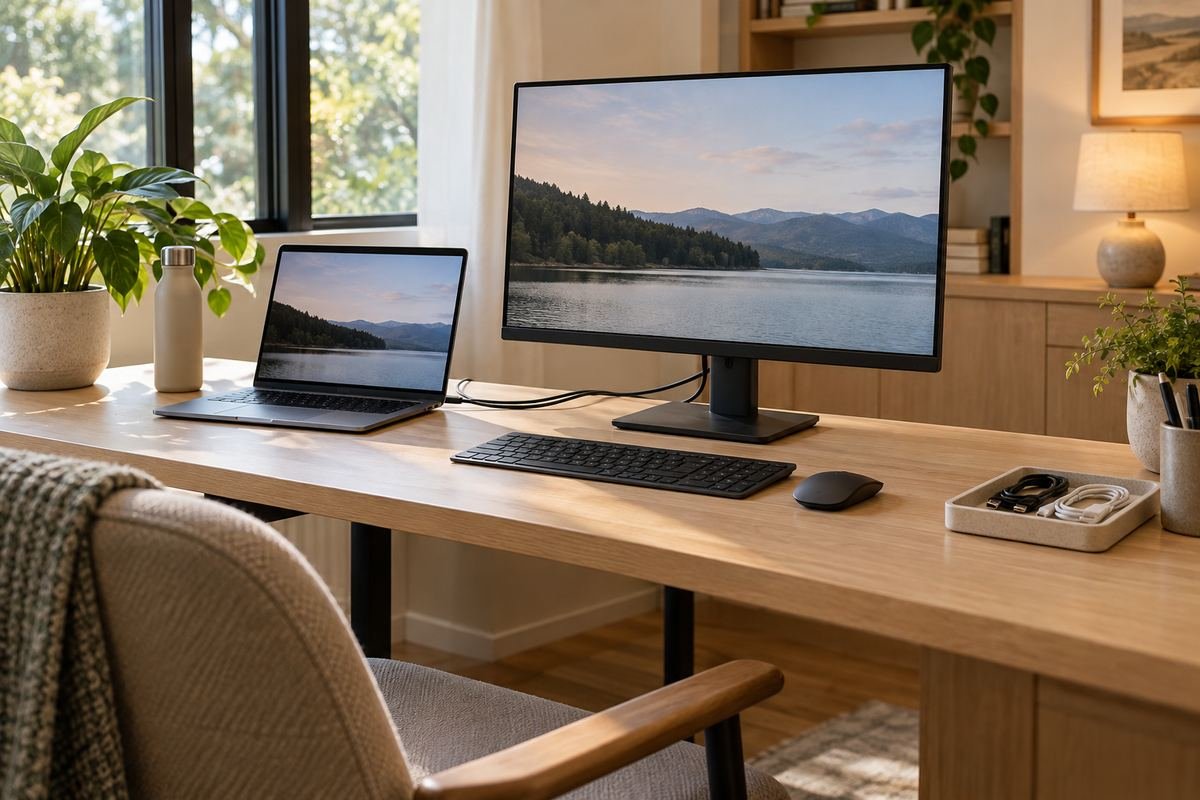
A workstation can accumulate leads from devices that no longer sit on the desk. Identify the active connections before choosing organizers so the finished route serves the current setup. Keep a simple private record of which lead belongs to which device, especially where similar connectors are used.
Disconnect and handle equipment only as its instructions allow. Move appropriate unused leads to separate storage after checking their identity and condition. This first edit often makes the remaining layout easier to understand without adding any new hardware to the desk.
Practical tip: Inventory the devices before buying a cable-management kit.
2. Give the rear edge one clear peripheral route
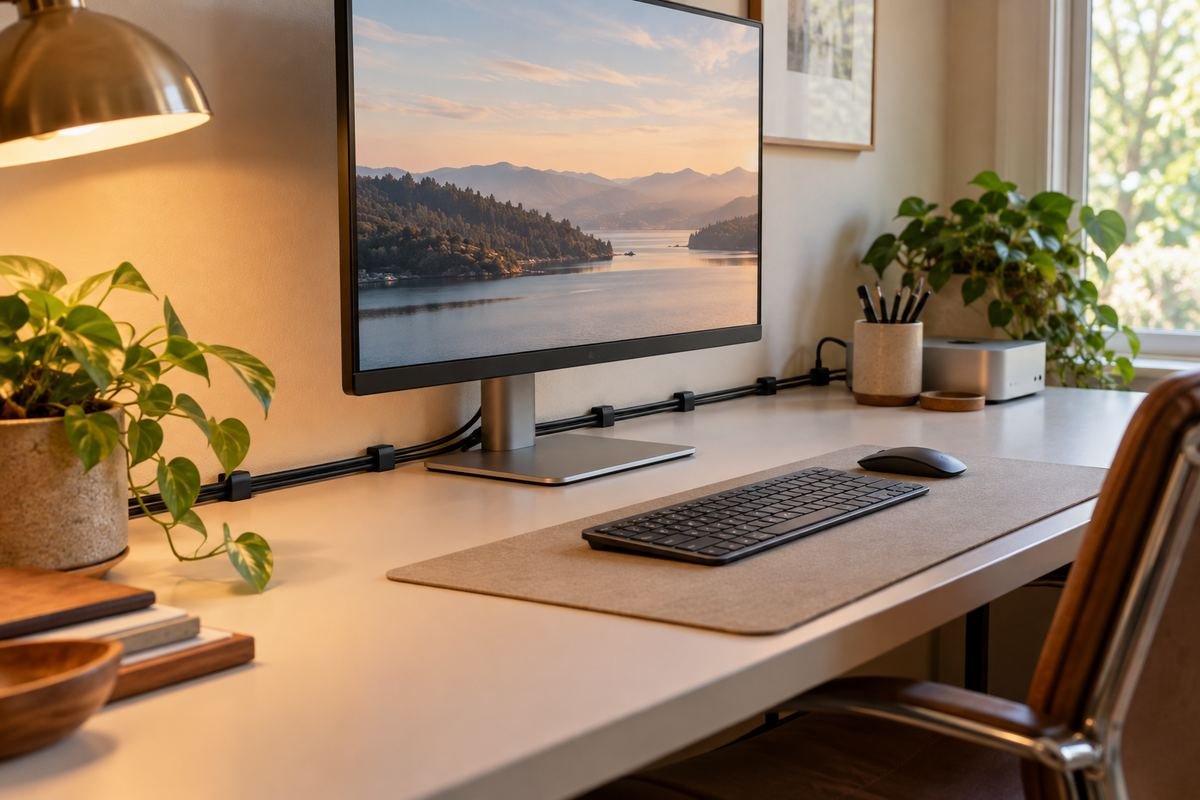
A defined route along the back of the desktop can keep ordinary peripheral leads away from the main writing and mouse area. Choose the route through the positions of the devices and their ports, not only the neatest line visible from the doorway. The leads should remain identifiable and accessible.
Compare suitable holders or the desk’s built-in management features rather than fastening cables indiscriminately to the finish. Leave the space required by the equipment and its connections. If the rear edge is also occupied by a monitor clamp, resolve those footprints together before attaching anything.
Practical tip: Map the monitor clamp and cable route on the same sketch.
3. Compare an under-desk tray with the real underside

An appropriate tray can give several suitable leads a defined place beneath the desktop. Check where you sit and how the tray relates to the desk frame, apron and other accessories. A tray that is hidden from the entrance can still be awkward if it intrudes into the working position.
Measure the available mounting area and follow the exact tray and desk instructions. Include the filled load and the equipment requirements, not only the tray’s empty dimensions. Keep the arrangement accessible enough to inspect and change without pulling on the cables.
Practical tip: Check the user space before selecting the tray position.
4. Leave power adapters in an arrangement their makers permit
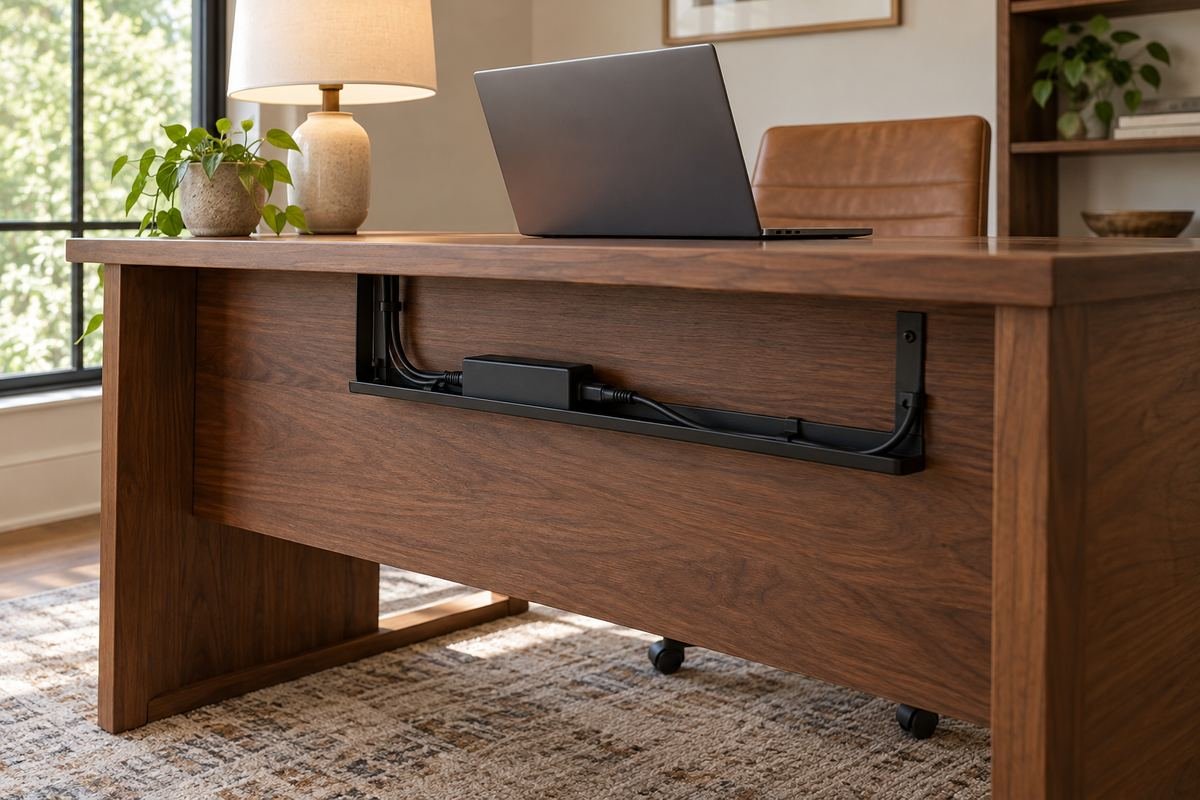
Power adapters should not disappear into an unsuitable crowded enclosure just because the desk looks calmer afterward. Compare the requirements for the exact adapters and any proposed organizer. Keep the arrangement inspectable and avoid surrounding it with loose papers or unrelated stored objects.
Choose an appropriate open or specified configuration only when the complete setup is suitable. The appearance of a mesh basket does not establish that every adapter can be placed inside it. If the equipment needs a different location or clearance, let that requirement shape the layout.
Practical tip: Confirm equipment requirements before choosing an enclosure.
5. Retain a daily charging lead near the desk edge
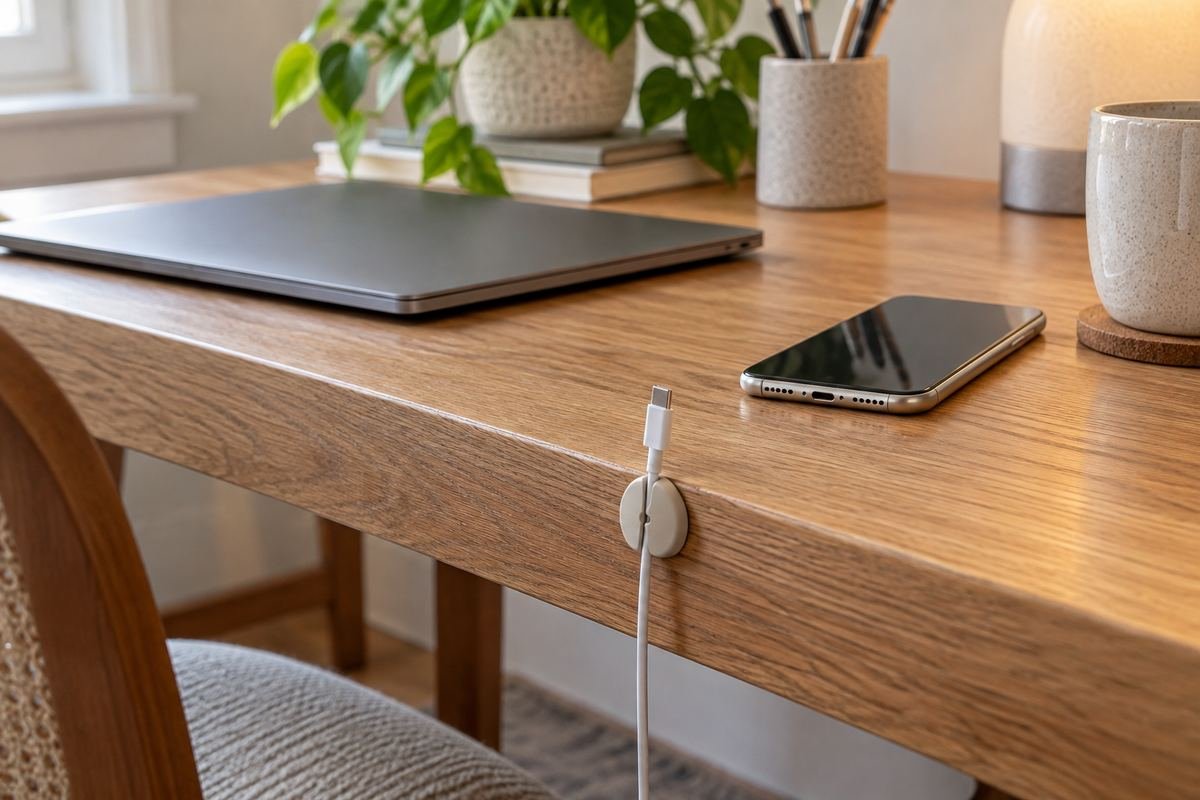
A suitable cable holder can keep a regularly used low-voltage charging lead from dropping behind the desk. Position it where the user can connect the device without reaching across the keyboard or moving several accessories. Keep the charging location separate from a crowded writing area.
Compare the holder with the actual lead diameter and the desktop finish. It should retain the lead without forcing the connector into an awkward angle. Check the attachment and removal guidance so a small organizational detail does not damage a delicate surface.
Practical tip: Test the holder with the exact lead you use.
6. Use gentle reusable ties for suitable peripheral leads
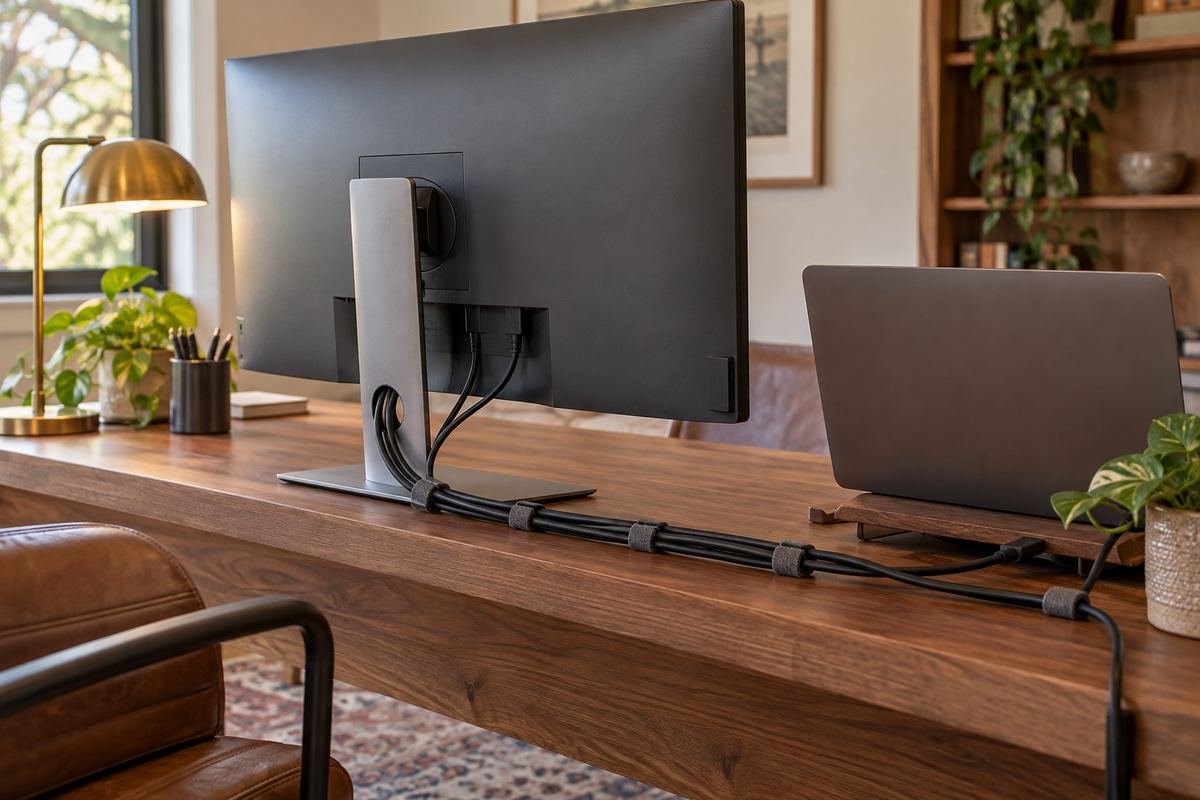
Reusable ties can keep an appropriate group of peripheral leads understandable while allowing the arrangement to change. Group cables by a shared route or task rather than fastening every connection together. The user should still be able to identify and remove a frequently disconnected lead.
Follow the cable and organizer guidance and avoid crushing or sharply bending the leads. Keep the group modest enough to reopen easily. A sequence of carefully chosen ties can be more maintainable than a tight bundle that has to be dismantled whenever one device moves.
Practical tip: Keep the daily removable lead outside a permanent-looking bundle.
7. Compare a sleeve only for the leads it is intended to hold
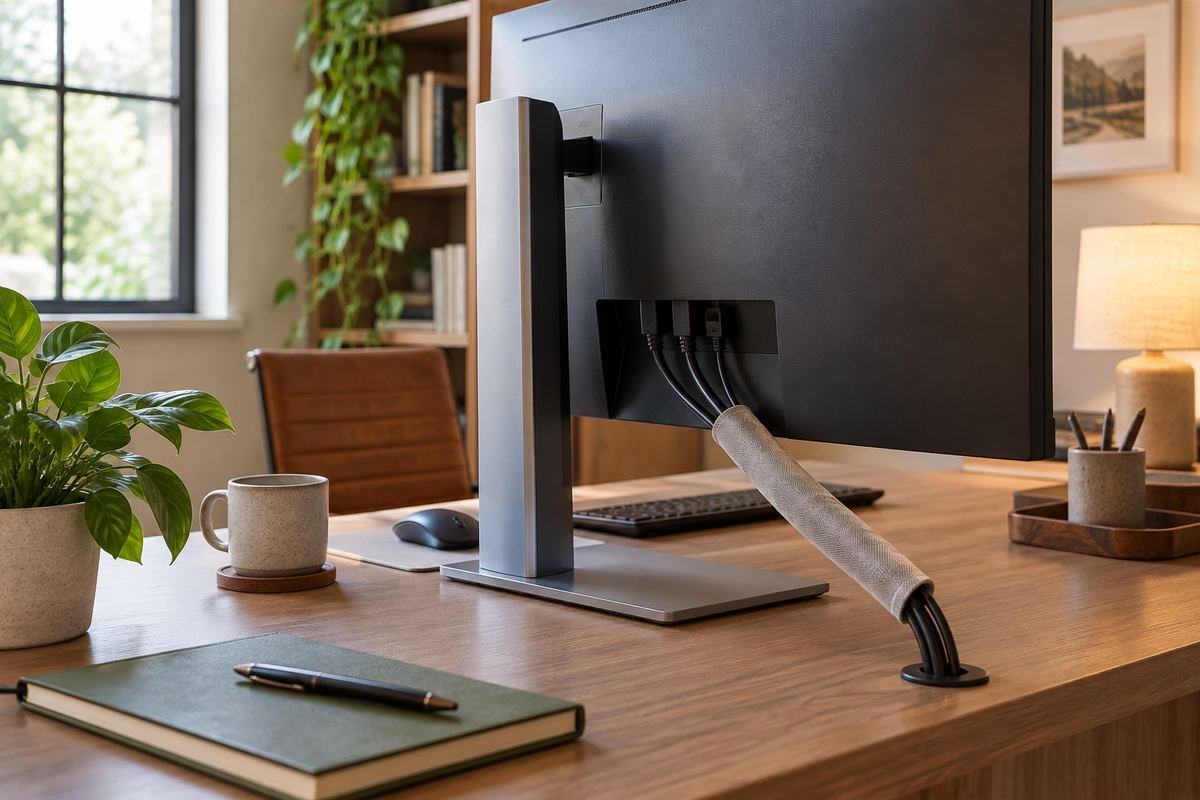
A suitable sleeve may simplify a short visible group of appropriate peripheral leads. Choose it through the actual cable types, their requirements and the amount of access needed later. Treat the sleeve as an organization product with limits rather than a universal cover for anything behind the desk.
Keep connections accessible and avoid concealing a problem inside the sleeve. Do not transfer this visual idea to covered power cords or an in-wall route. If several leads disconnect daily, individual holders may be easier to use than a shared sleeve that must be opened repeatedly.
Practical tip: Choose the sleeve from the cable requirements and access routine.
8. Plan standing-desk cable management ideas through full movement
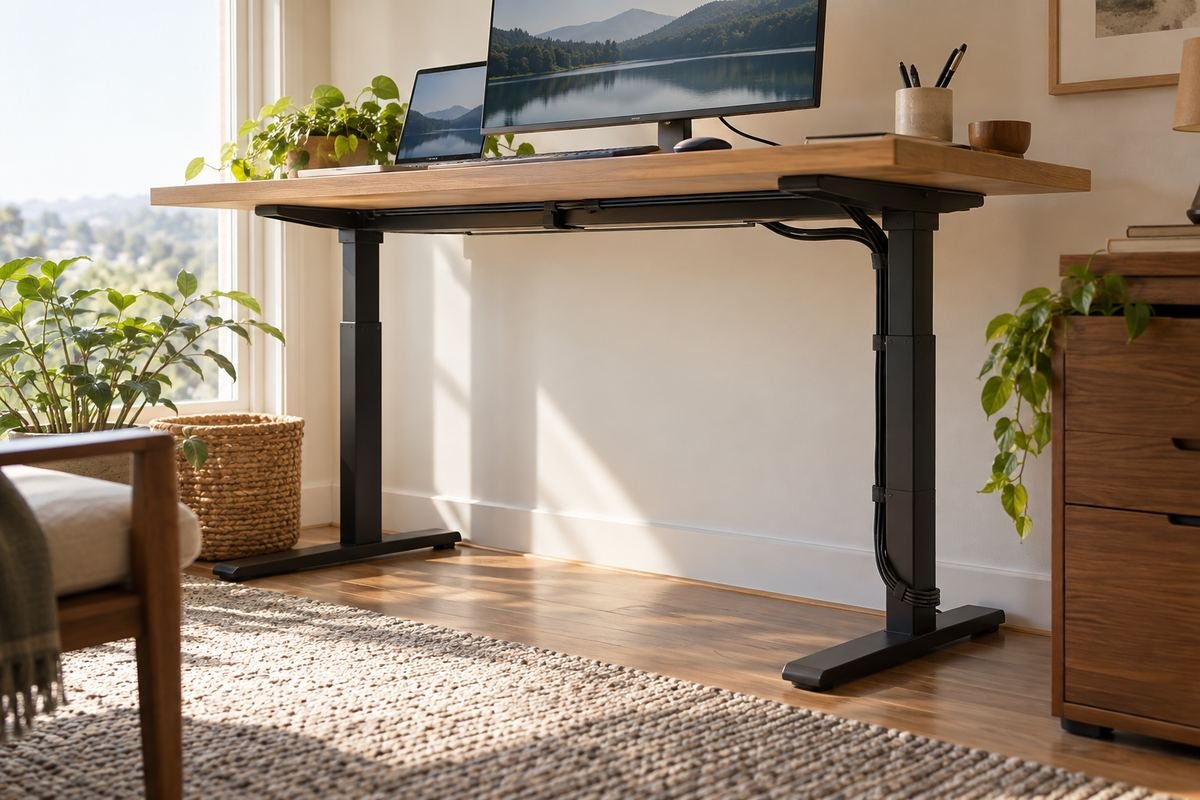
A height-adjustable desk changes the relationship between the desktop and fixed equipment around it. Follow the exact desk guidance and account for the whole permitted height range. A route that appears neat at one position must also remain workable at the other positions used by the household.
Observe where leads could catch, become taut or interfere with the moving frame. Keep the route away from unrelated objects beneath the desk. If the desk stops or a cable catches, resolve the cause instead of forcing movement or changing a protective setting to conceal the conflict.
Practical tip: Test the complete permitted movement before calling the route finished.
9. Use the monitor arm route as the manufacturer intends

A monitor arm may include a cable-management path designed around its joints. Compare that path with the leads and connectors actually used, and follow the arm instructions. The route should allow the screen to move as intended without pulling on a port or trapping a lead at a joint.
Test the positions used during ordinary work, including turning the screen for a second person if that is part of the routine. Do not secure a cable so tightly that the arm can only hold one decorative pose. Keep enough access to change a monitor connection later.
Practical tip: Check each ordinary screen position after routing the leads.
10. Give the docking station an accessible home
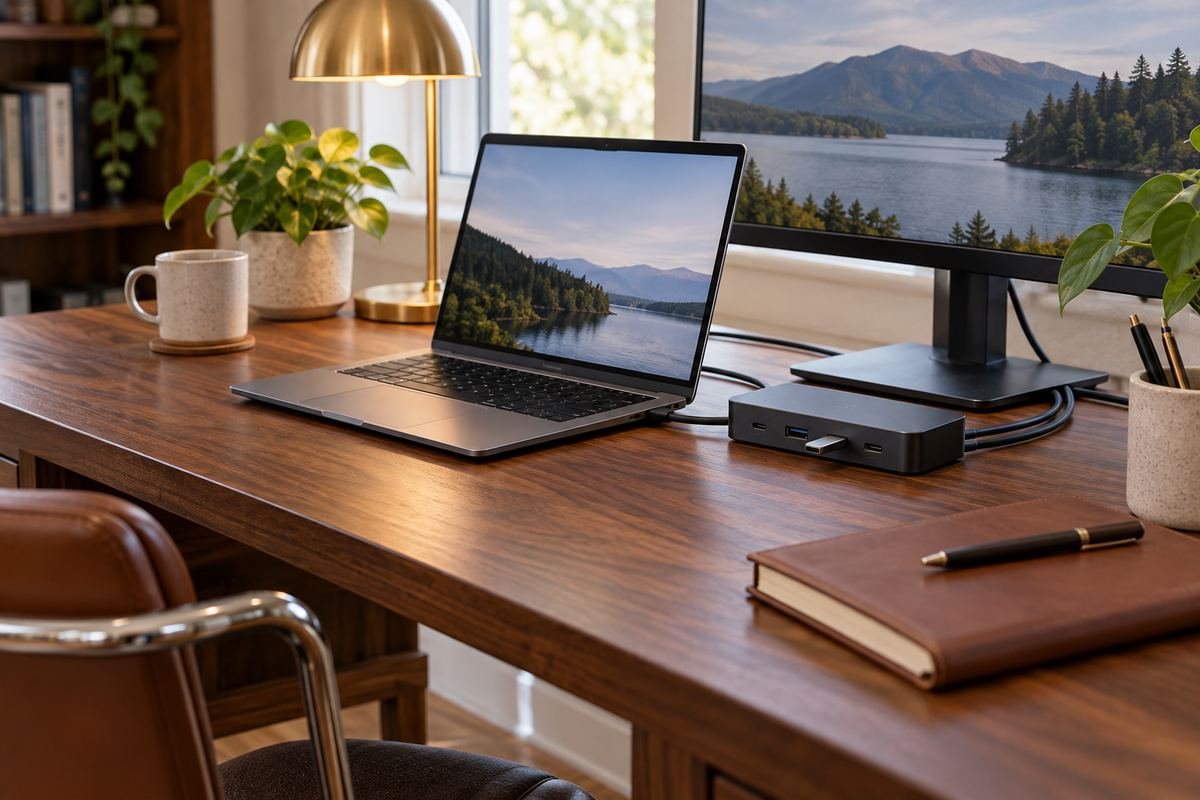
A docking station can simplify the daily connection sequence when its ports and capabilities suit the devices. Give it a settled position with the access and ventilation its instructions require. It should be easy to connect the laptop without moving the monitor, keyboard or desk decoration first.
Compare the location of frequently used ports with the route of the incoming leads. A dock hidden at the very back may look tidy but be inconvenient when a storage device or headset is connected often. Choose a position that supports the real workday rather than hiding the object at any cost.
Practical tip: Place the ports you use daily within comfortable reach.
11. Make the laptop’s daily disconnect easy to recognize
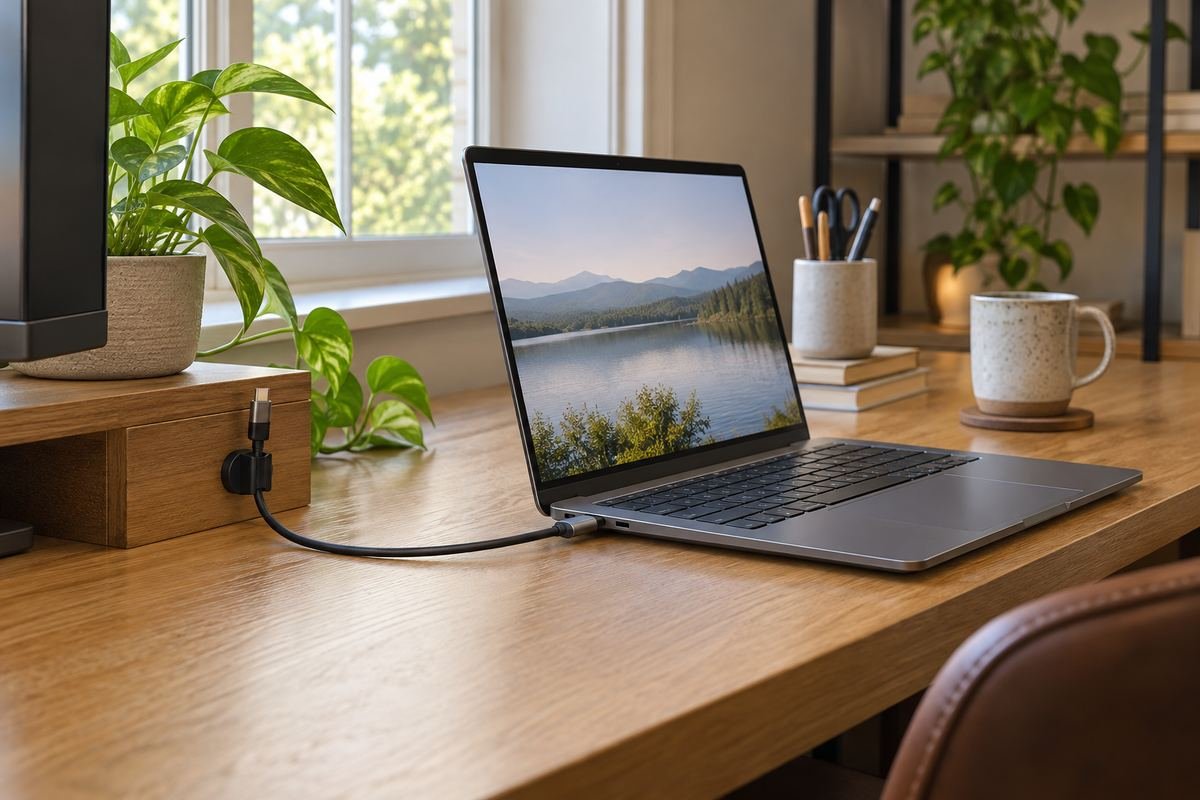
A laptop carried away at the end of the day needs a clear connection point. Keep the appropriate daily lead distinguishable from the fixed workstation connections. A suitable holder can retain it after removal so the next morning does not begin with searching behind the desk.
Check that the chosen dock and lead support the actual device requirements. Avoid claiming that one connector can replace every cable in every setup. The useful detail is a clear repeatable sequence that matches the equipment already in use.
Practical tip: Design the arrangement around the actual end-of-day disconnect.
12. Keep the phone charging position out of the writing area

A defined charging position can keep the phone and its lead from drifting across the desk. Choose a stable suitable location that respects the device and charger instructions. Leave the main writing and mouse area available instead of stretching the lead through it.
Compare the route with the way the phone is picked up during the day. If the cable repeatedly catches a notebook or pulls an object toward the edge, move the charging position. Keep drinks and other unsuitable nearby items out of the charging arrangement.
Practical tip: Test the route while picking up the phone normally.
13. Use an existing factory cable opening before adding another route
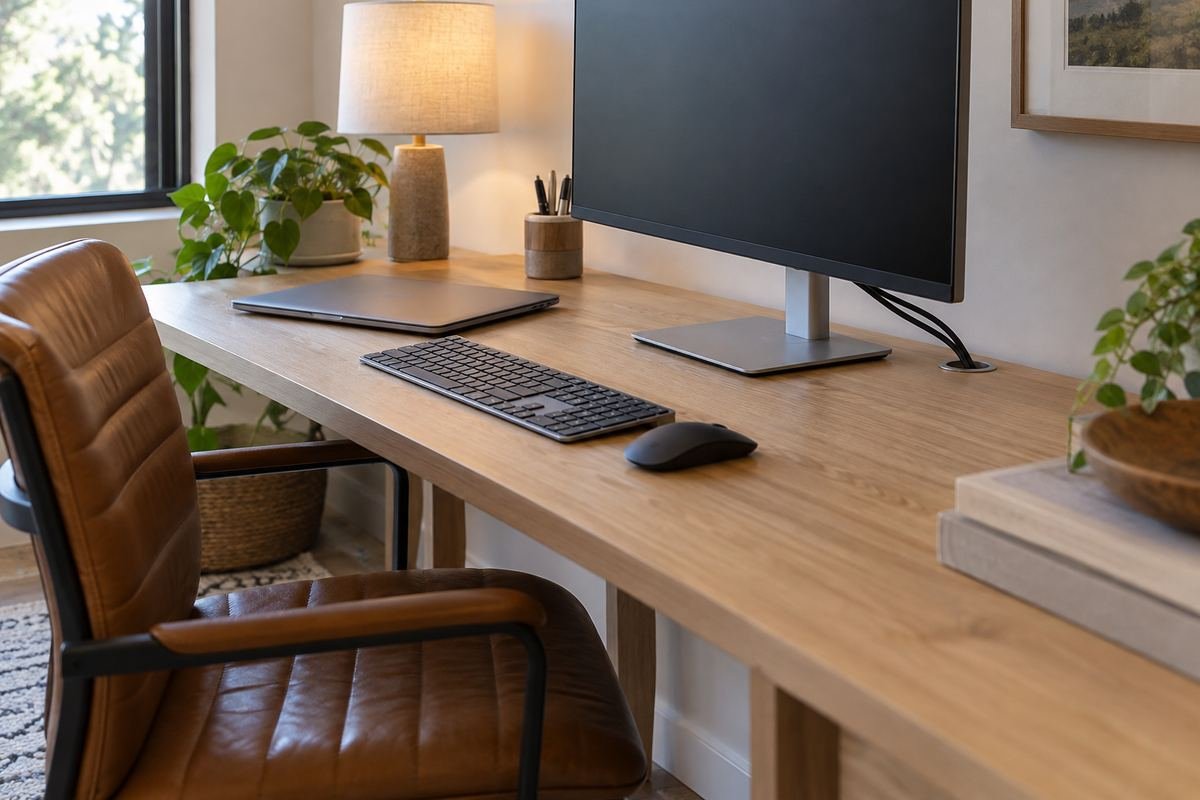
A desk with a designed cable opening may already provide a useful path between the desktop and its management area. Check what the opening is intended to carry and how its edge is finished. Compare it with the equipment and connectors before choosing extra clips across the surface.
Keep the route compatible with the desk’s structure and instructions. Do not enlarge or drill through an unknown desktop simply because a concept image shows a neat opening. If the existing path conflicts with the monitor position, reconsider the layout or use an appropriate alternative product.
Practical tip: Check the desk’s existing features before proposing modifications.
14. Choose the desk position through suitable existing power access
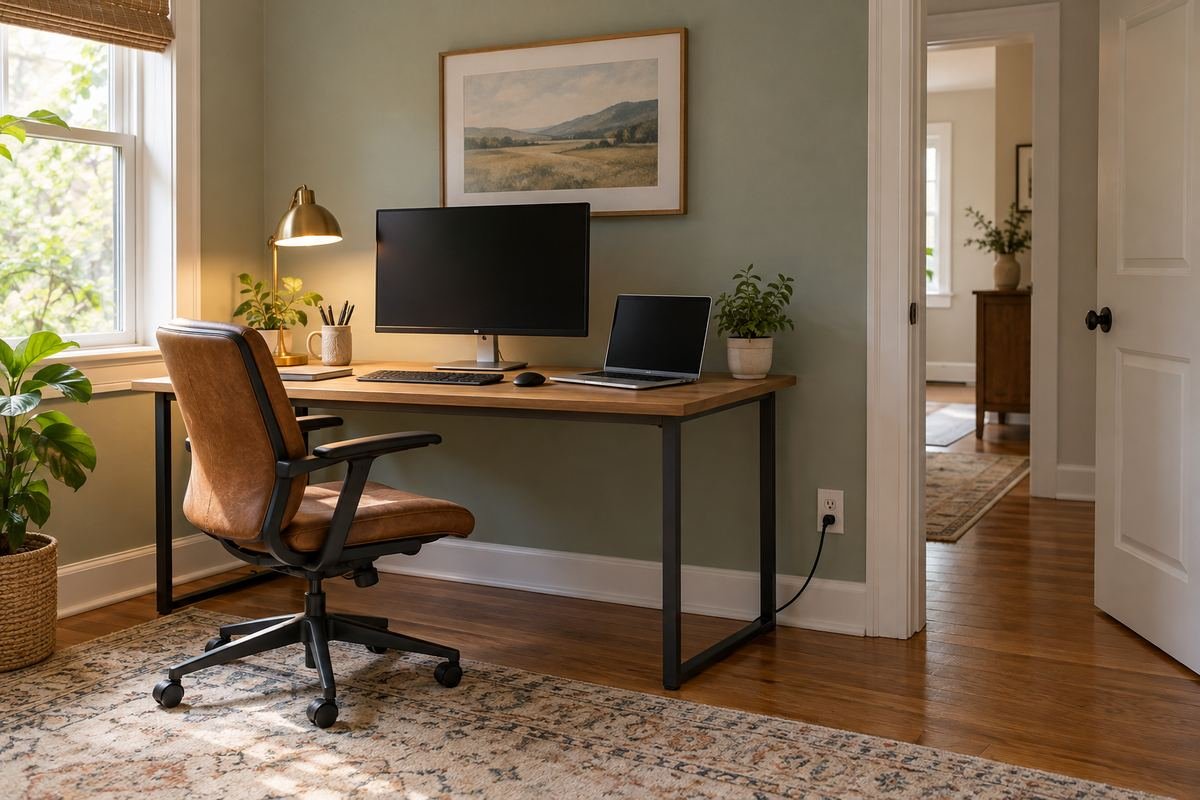
The desk location affects how far its connections must travel. Compare the room layout with appropriate existing electrical access before committing to a freestanding position for appearance alone. A considered location can keep the connection route simpler while preserving the useful room layout.
If the chosen workstation depends on an unsuitable long-term extension arrangement, have the power provision assessed rather than disguising it beneath a rug. Include the chair, door movement and routes used by other people when comparing positions. The complete room matters as much as the view of the desktop.
Practical tip: Resolve power access before finalizing the furniture layout.
15. Keep a wall-side route accessible instead of buried behind objects
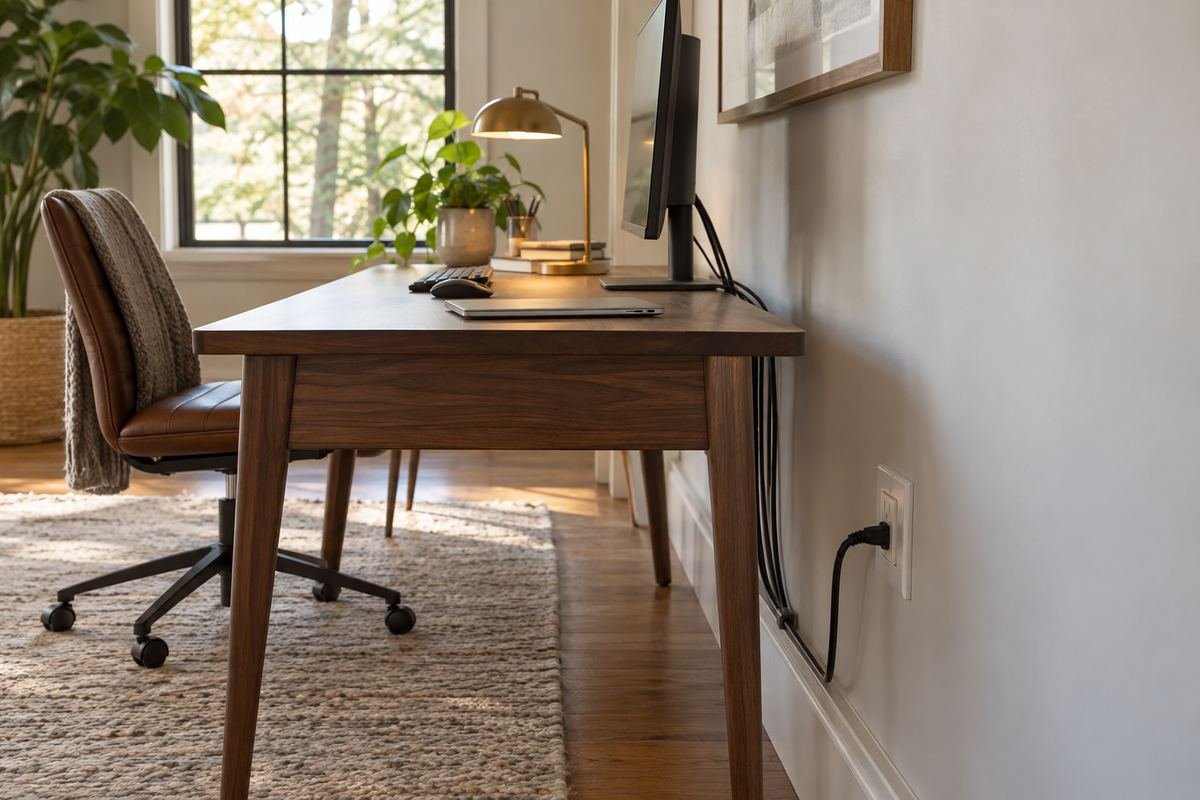
A wall-side desk can hide much of its connection route naturally, but the space should remain manageable. Avoid filling the gap with storage baskets, loose paper and unrelated equipment until the leads cannot be seen or reached. A simple route is easier to inspect during ordinary cleaning.
Leave the space required by the devices and their connections, and use only suitable organizers and attachment methods. The desk does not need to be pushed tightly against every plug. Check that moving the furniture for cleaning does not pull on the equipment.
Practical tip: Preserve access to the connections behind the desk.
16. Follow a suitable rear-leg route on a freestanding desk

A freestanding workstation makes more of the cable route visible from the room. A compatible management feature near a rear leg can give the route a deliberate place while keeping the central user area clear. Choose it through the desk and cable instructions.
Consider the view from the room entrance as well as the position of the seated user. Keep the route out of chair wheels and circulation space. If the equipment cannot reach suitable power access without creating a conflict, reconsider the furniture position rather than forcing the connection across the room.
Practical tip: Check the route from both the seated and room views.
17. Keep cables clear of a moving keyboard tray
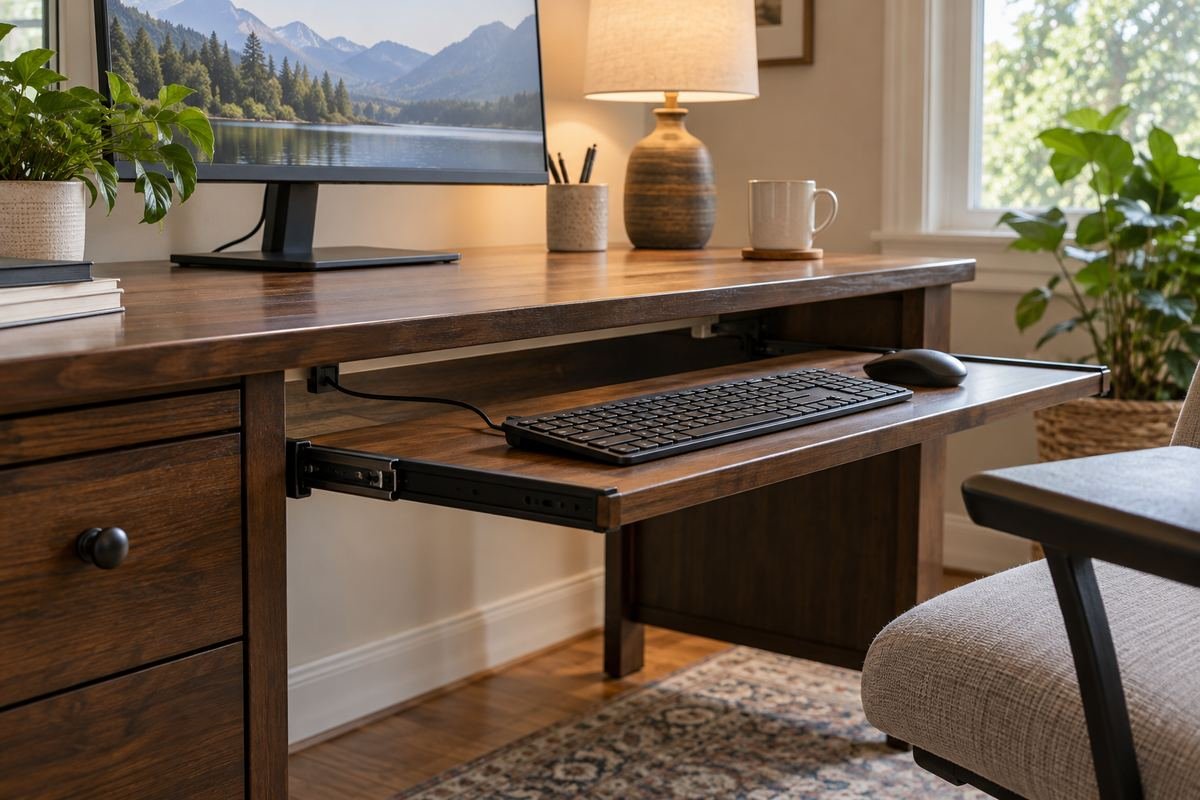
A keyboard tray introduces another moving surface beneath the desk. Check the leads for any devices that travel with it and compare their route with the slide mechanism. The management arrangement should allow the tray to open and close in the positions used during work.
Do not fasten a lead across a moving joint or use a tray as a place to trap excess cabling. Follow the accessory instructions and preserve the space needed for the user. If the new keyboard tray conflicts with an existing cable basket, resolve the two accessories together.
Practical tip: Test the keyboard tray before fixing the final cable positions.
18. Separate the connection groups at a shared workstation

A shared desk can become confusing when two users connect and disconnect different devices. Give each routine a recognizable lead or group without mixing it into the other user’s fixed connections. A simple consistent location can be more useful than an elaborate color-coding system.
Check the device requirements individually, especially where connectors look alike but support different functions. Keep any private identifying labels appropriate to the household. The goal is to make daily changes understandable without accidentally disconnecting equipment that the other person expects to remain connected.
Practical tip: Agree which leads stay connected and which leave with the user.
19. Give the printer route its own resolved position
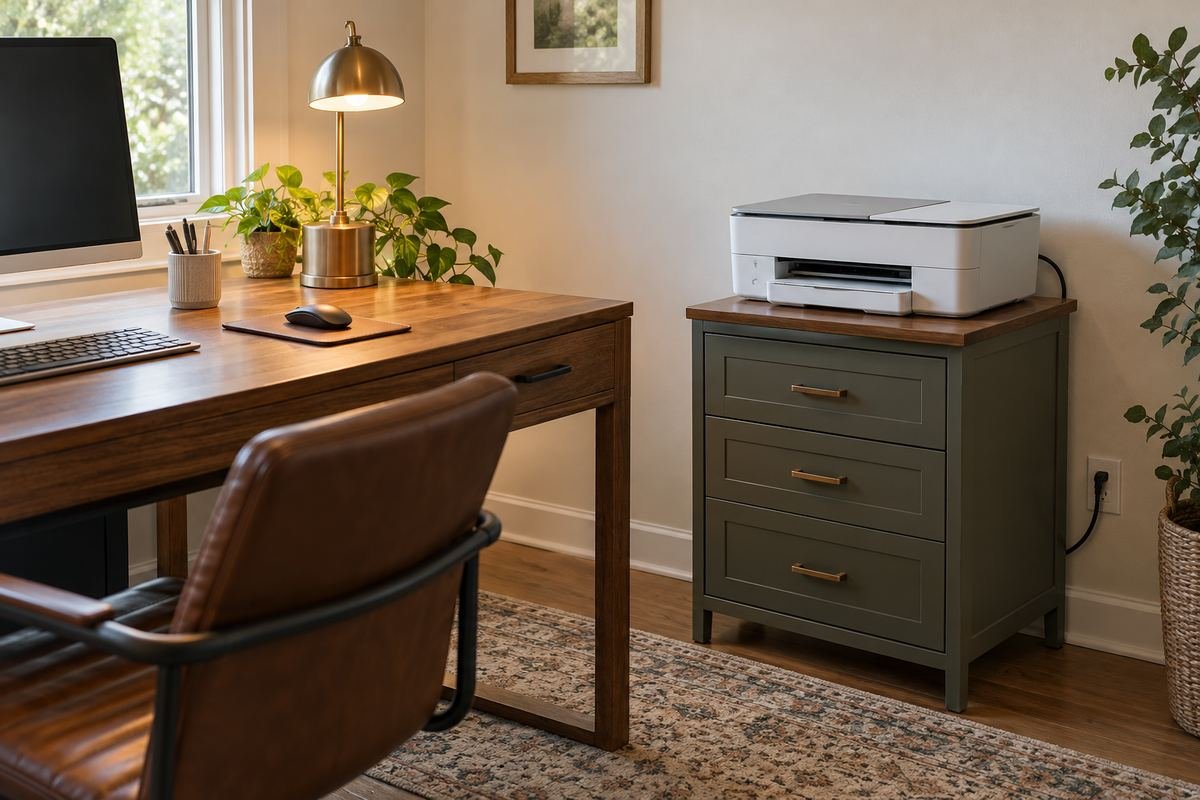
A printer on a side cabinet may need a different route from the monitor and laptop on the desk. Position it through its use, connection requirements and access for paper or maintenance. Avoid stretching its leads across the central working surface simply because the nearest cable basket is there.
Follow the printer’s power and connection instructions rather than assuming the workstation power arrangement suits every accessory. Keep the cabinet and drawer movement in view. If the printer is rarely used, an appropriate separate location may keep the daily desktop simpler.
Practical tip: Include paper access and cabinet movement in the printer layout.
20. Keep a suitable power strip accessible and correctly used
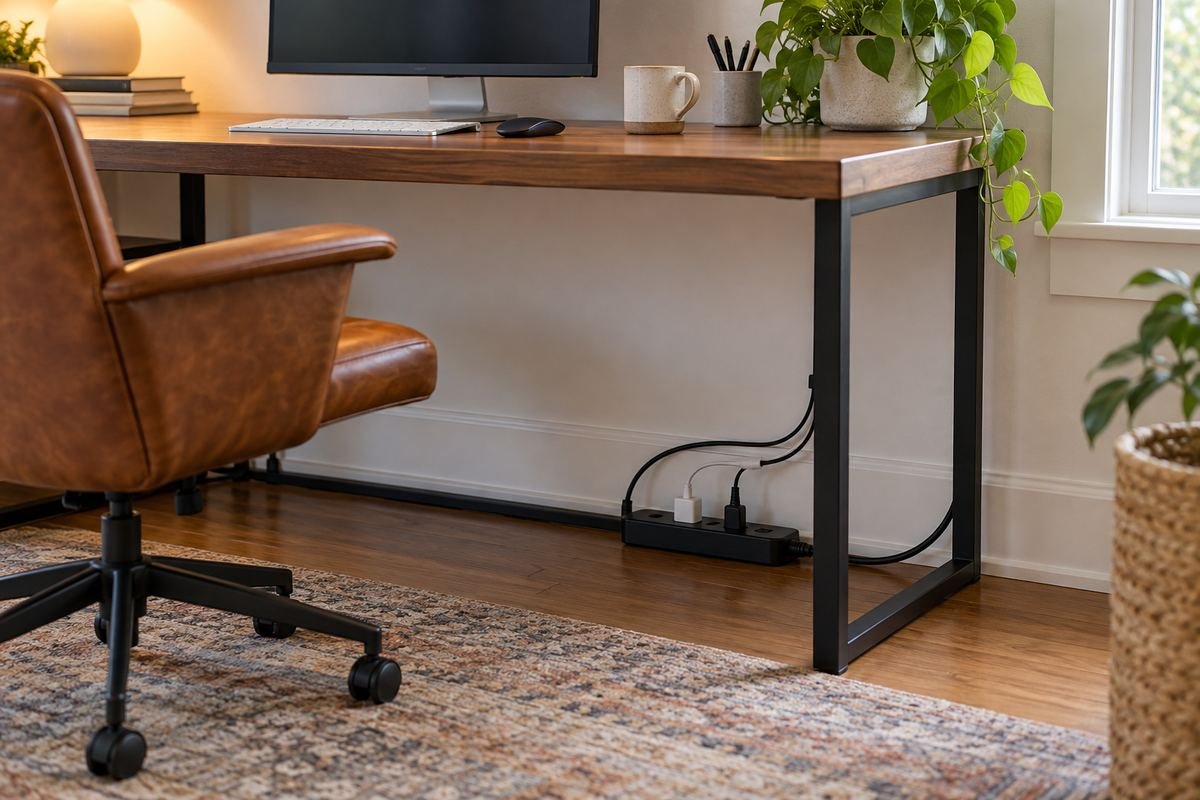
A power strip needs to suit the connected equipment and the way it is used. Follow its rating and instructions and preserve access to the switch and connections. A management tray should not make it difficult to inspect the arrangement or reach the controls.
ESFI advises against chaining multiple-plug outlets together. Do not add another strip to solve a shortage of suitable provision, and keep heaters and fans out of an extension-cord or power-strip arrangement. If the workstation needs different electrical access, resolve that need appropriately before refining the visual finish.
Practical tip: Resolve electrical suitability before hiding the power arrangement.
21. Store disconnected spare leads outside the active route
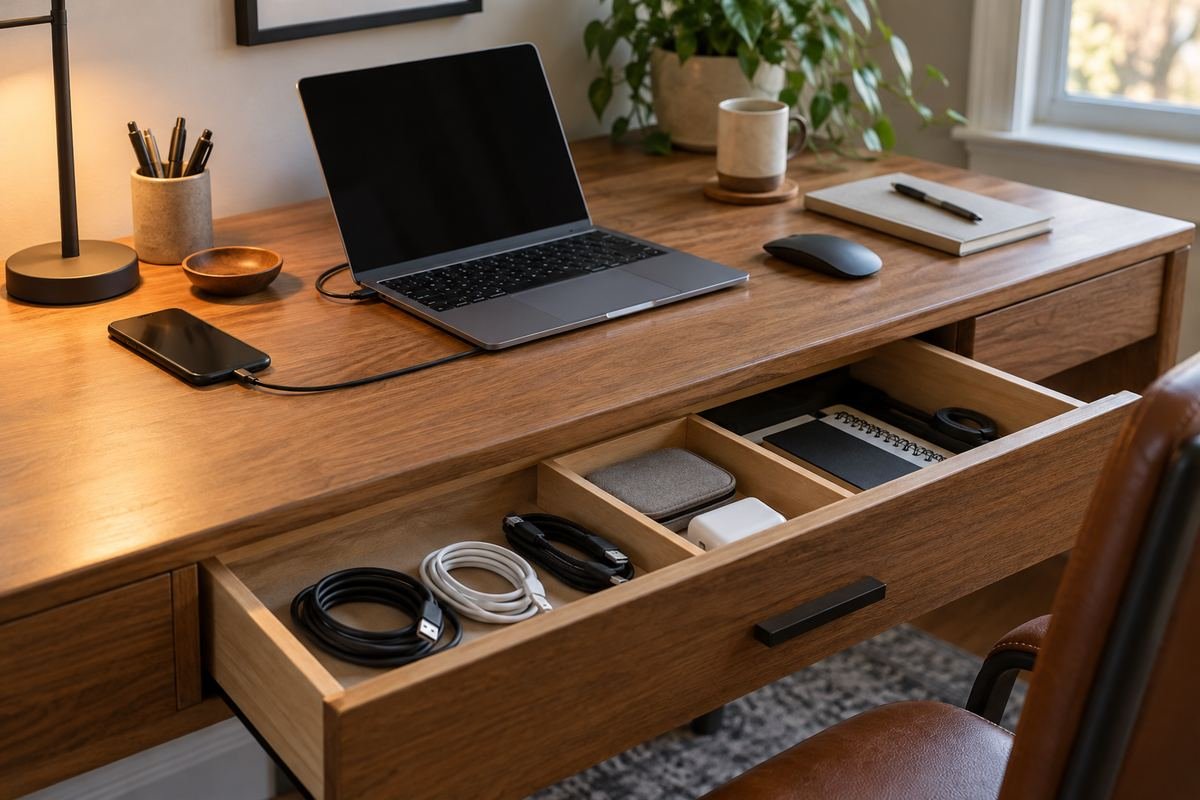
Spare leads are easier to manage when they are separate from the working connections. Give appropriate disconnected cables a dry storage compartment with enough room for their intended storage method. Keep their identity and compatibility clear so an unfamiliar lead is not chosen only because its plug appears to fit.
Review the collection when equipment changes and follow the relevant product guidance. Do not crowd the active tray with unused lengths merely to avoid deciding where they belong. A smaller working group can make future device changes easier to understand.
Practical tip: Separate storage from the live connection layout.
22. Finish desk cable management ideas with an easy review routine
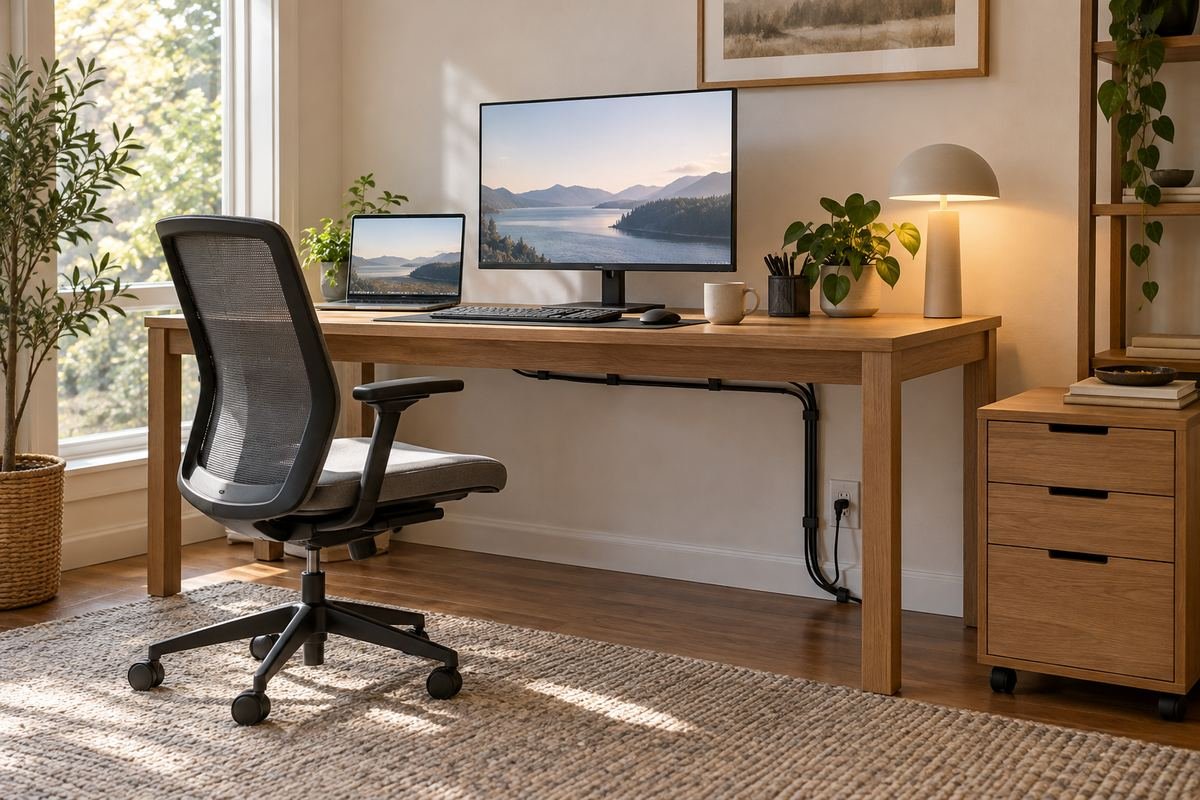
A finished workstation changes as devices, work habits and furniture positions change. Make the arrangement easy to review during ordinary cleaning or after adding equipment. Check that connections remain accessible and that the route still works through the movements used each day.
Inspect cords according to the equipment guidance and stop using damaged or unusually hot items. Reassess organizers that repeatedly loosen or interfere with another function. The most useful final detail is a setup that can be understood and adjusted without pulling every lead out at once.
Practical tip: Review the route whenever the equipment or movement routine changes.
Frequently Asked Questions
Where should I start with desk cable management?
List the devices in active use, identify both ends of each lead and note what moves or disconnects daily. Resolve the electrical provision first, then choose the simplest compatible organizers for the routes that remain. Buying a large kit before mapping the setup can add unused hardware.
Can I put a power strip in any decorative box?
Do not assume a box is suitable because it has a lid or ventilation-looking holes. Follow the power strip, adapter and organizer instructions for the complete arrangement, including clearance and heat requirements. If suitability is not established, choose a different appropriate configuration rather than enclosing the equipment for appearance.
How much slack does a standing desk need?
Enough for the actual desk and connected equipment to complete their permitted movement without tension, catching or a loose route that interferes elsewhere. Follow the exact desk and accessory guidance. A loop measurement from another product is not a universal rule.
Should I use adhesive clips or clamps?
Compare the surface, cable size, permitted attachment method and access needed later. Adhesive products have their own surface and removal requirements; clamps need a suitable edge and load arrangement. Neither method is automatically compatible with every desktop finish or construction.
Can I hide a cord under the desk rug?
ESFI advises against running cords under rugs or carpets. Reconsider the equipment position and the appropriate power route instead of concealing a cord beneath a floor covering. Keep the walking area clear and use suitable permanent electrical provision where it is needed.
How do I keep the setup easy to change?
Use a clear route, retain access to connection points and keep disconnected spare leads in a separate place. Avoid fastening every peripheral into one difficult-to-open bundle. Review the setup whenever a device, monitor position or desk height routine changes.
Choose the Details That Work in Your Home
Choose the connection route first and the organizer second. A useful arrangement keeps daily leads reachable, respects electrical and equipment requirements and remains clear through movement. The best desk cable management ideas make the workspace easier to maintain without turning a simple device change into a complete dismantling project.
For related ideas, explore home office setup checks, home office organization ideas, small bedroom desk layouts.
Planning References
ESFI: extension cord ratings, temporary use and connection precautions; ESFI: electrical safety in a home learning workspace; IKEA: FÖRSÄSONG tray fit, dimensions and maximum load; Progressive Automations: cable routing through standing-desk movement. Follow the instructions for the exact products you choose.
Optional digital guide for this topic
If you prefer a structured workbook, explore this related paid guide.